Introduction
Creating visually appealing presentations is no longer optional - it’s essential. Whether you're pitching a business idea, delivering a classroom lecture, or presenting a report, the way your slides look can make or break audience engagement. One of the simplest ways to elevate your slides is by using PNG images effectively.
PNG (Portable Network Graphics) files are widely preferred in presentations because of their high quality and support for transparency. In this guide, you’ll learn how to use PNG images in PowerPoint like a pro, with practical tips, design techniques, and resources to enhance your slides instantly.
Why Choose PNG Over Other Formats
When selecting images for your PowerPoint slides, choosing the right file format matters. PNG files offer several advantages over formats like JPEG or GIF:
1. High Image Quality
PNG images use lossless compression, meaning they don’t lose quality when edited or resized. This ensures your slides remain crisp and professional.
2. Transparency Support
One of the biggest reasons designers prefer PNG is transparency. You can place images seamlessly on any background without awkward white boxes.
3. Perfect for Graphics & Icons
PNG is ideal for logos, icons, illustrations, and design elements—especially when you want a clean, modern look.
4. Better Editing Flexibility
Because PNG images retain quality, you can resize, crop, or layer them without worrying about pixelation.
Inserting & Resizing PNG Images Correctly
Adding PNG images to PowerPoint is a straightforward process, but doing it correctly can significantly improve the overall look of your slides. To insert an image, simply go to the “Insert” tab, select “Pictures,” and choose your PNG file from your device. While this step is simple, the real impact comes from how you handle the image after inserting it.
Resizing should always be done carefully using the corner handles to maintain the image’s original proportions. Stretching an image from the sides can distort it, making your presentation appear unprofessional. Maintaining the correct aspect ratio ensures that your visuals remain sharp and visually appealing.
Equally important is proper alignment. Positioning your images neatly within the slide creates a sense of balance and structure. PowerPoint’s built-in alignment tools and guides can help you place elements consistently, resulting in a clean and polished design that enhances your presentation’s visual quality.
Using Transparent PNGs on Any Slide Background
One of the biggest advantages of using PNG images is their ability to support transparency. Transparent PNGs allow you to place images seamlessly onto any type of background, whether it’s a solid color, gradient, or even another image. This flexibility helps create slides that look modern, clean, and professionally designed.
You can use transparent icons as bullet points to make text more engaging or overlay product images onto branded backgrounds for a more dynamic presentation. Combining multiple PNG elements can also help you create layered visuals that add depth and interest to your slides.
However, it’s important to use these elements thoughtfully.
Overloading a slide with too many images can make it look cluttered and distracting. A minimal approach, where each visual serves a clear purpose, will always deliver better results and keep your audience focused on the key message.
Removing Image Backgrounds in PowerPoint
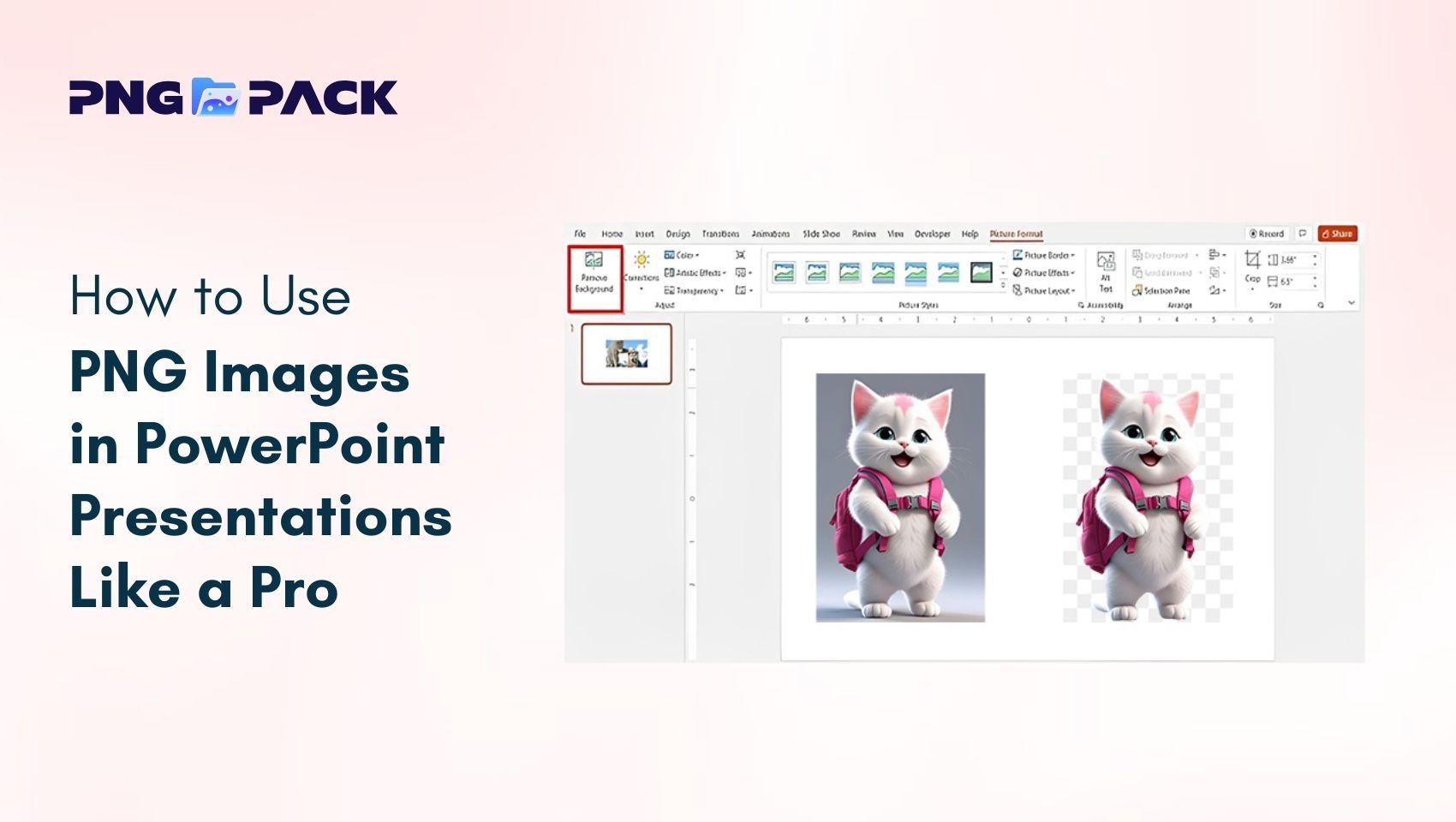
Even if you don’t have a PNG image with a transparent background, PowerPoint offers a built-in feature that allows you to remove backgrounds from standard images. This tool is extremely useful when you want to create custom visuals without relying on external software.
To use this feature, select the image and navigate to the “Picture Format” tab, then click on “Remove Background.” PowerPoint will automatically detect the background and highlight the areas to be removed. You can refine the selection by marking areas to keep or discard, ensuring greater accuracy.
For the best results, choose images where the subject clearly stands out from the background. This makes it easier for PowerPoint to detect edges and produce a cleaner cut. With a little fine-tuning, you can achieve a professional, transparent effect that closely resembles a PNG image, giving you more flexibility in your slide design.
Pro Design Tips for Polished Slides
Using PNG images effectively goes beyond simply adding visuals—it requires a thoughtful design approach. One of the most important aspects of good design is consistency. Sticking to a single visual style throughout your presentation helps maintain a professional and cohesive look. Mixing different styles of graphics can make your slides appear disorganized.
Another key principle is visual hierarchy. Important elements should stand out, which can be achieved by using larger images for key points and smaller icons for supporting details. This helps guide your audience’s attention naturally through the slide. Subtle design enhancements, such as soft shadows or slight depth effects, can make your visuals more engaging.
However, it’s best to avoid overusing animations or heavy effects, as they can distract from your message. Keeping your slides clean and minimal, with enough white space, improves readability and ensures your content remains the main focus. Finally, aligning your visuals with your brand colors or presentation theme adds a professional touch and reinforces your overall message.
Best Sources to Download Free PNG Images
Choosing the right source for PNG images can instantly improve your presentation quality. While general platforms offer good visuals, they often lack ready-to-use transparent graphics.
For quick and professional results, PNGPack is a great option. It provides a wide range of high-quality transparent PNG images, including icons, illustrations, and design elements that you can directly use in PowerPoint without editing.
To get the best results:
- Use high-resolution PNGs
- Prefer transparent backgrounds
- Keep your visual style consistent
Using reliable sources like PNGPack helps you create clean, polished, and visually engaging slides with minimal effort.
Conclusion
Using PNG images effectively can transform your PowerPoint presentations from simple slides into visually engaging, professional content. With their high quality and transparent backgrounds, PNGs give you the flexibility to design clean, modern visuals without extra effort.
By applying the right techniques - proper resizing, alignment, minimal design, and consistent styling - you can significantly improve how your message is delivered and perceived. Combining these practices with reliable resources like PNG Pack ensures you always have access to high-quality visuals that fit seamlessly into your slides.
In the end, great presentations aren’t just about information - they’re about presentation. And with the smart use of PNG images, you can make every slide count.