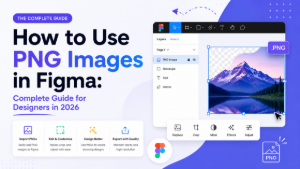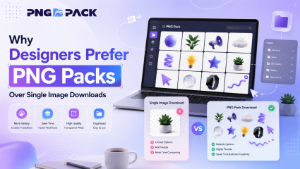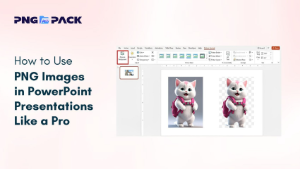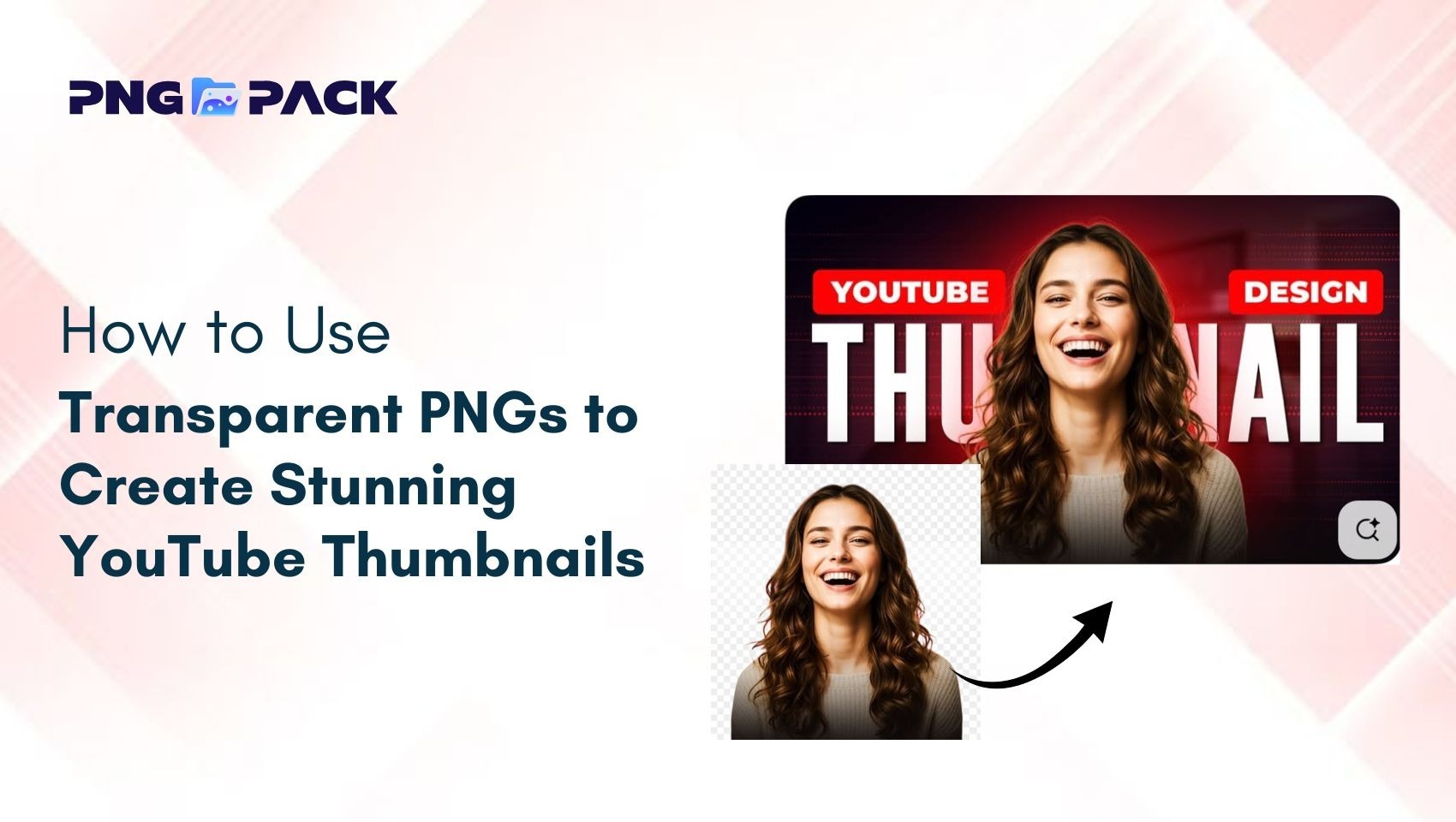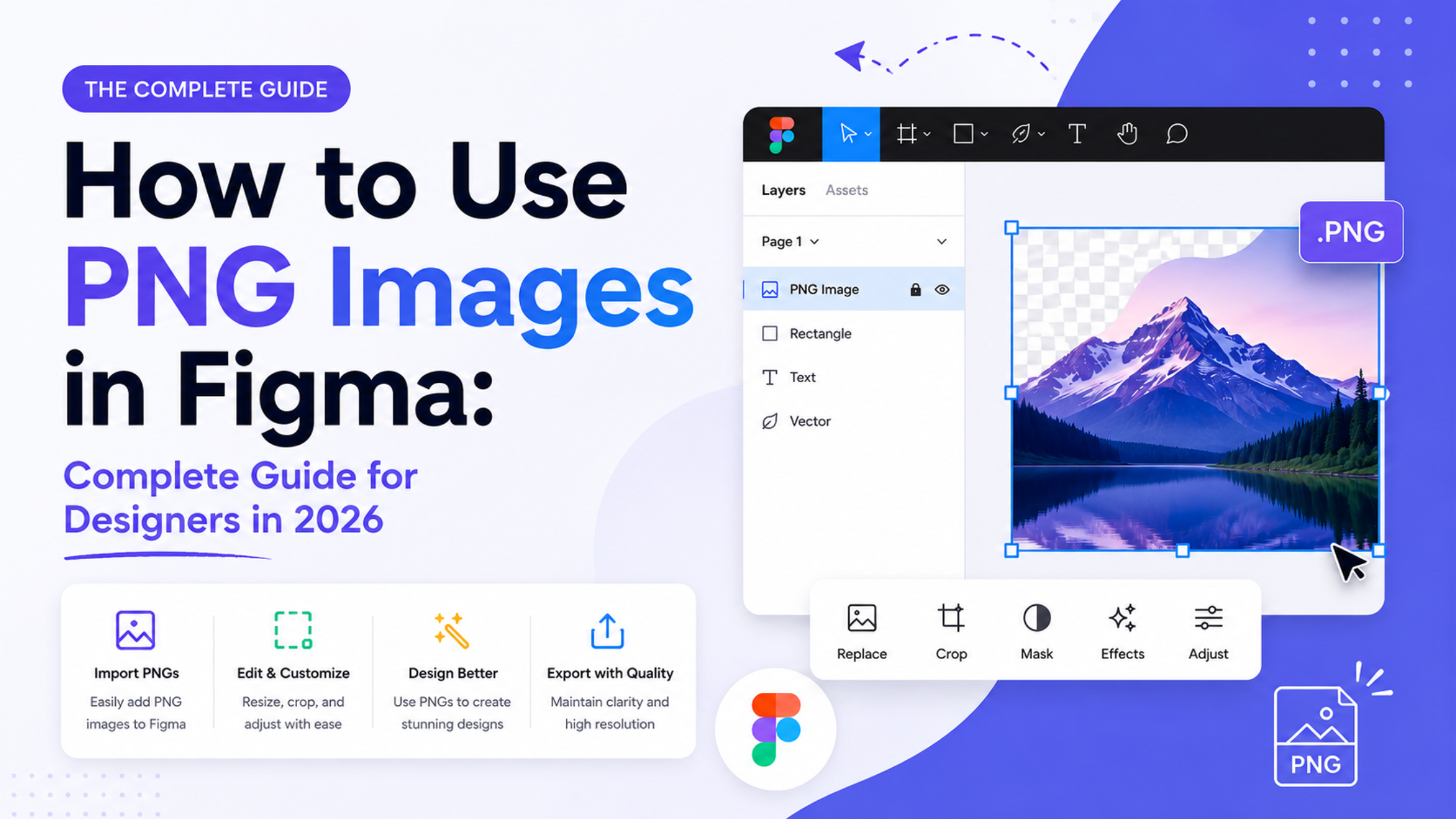
What Is a PNG Image in Figma?
A PNG image in Figma is a transparent or opaque raster graphic that you can import, place, resize, crop, and export directly inside your Figma design file. PNG is one of the two most reliable pixel-based formats Figma supports natively — the other being JPEG. The key difference? PNG supports transparency. JPEG does not. That single fact makes PNG the go-to format for logos, icons, stickers, overlays, and any design element that needs to sit cleanly on different backgrounds.
Whether you are a beginner who just opened Figma for the first time or a professional designer working on complex UI systems, knowing how to correctly use PNG images inside Figma will save you hours of editing time and help your designs look more polished and professional.
Why Figma Designers Rely on PNG Images
Before diving into the how-to, it helps to understand why PNG is the dominant format inside Figma workflows.
Figma treats every image — PNG or otherwise — as an image fill on a shape. This means any vector shape, frame, circle, or custom polygon in Figma can hold a PNG as its fill. This approach gives designers extraordinary flexibility: you can crop a PNG into a circle for a profile picture, place a transparent sticker PNG over a mockup background, or use a PNG icon inside a button component — all without leaving Figma.
PNG supports lossless compression, which means the image quality stays perfectly intact regardless of how many times you save or export the file. For logos, icons, illustrations, and transparent stickers, this makes PNG significantly better than JPEG, which loses quality every time it is compressed.
In 2026, Figma has also introduced built-in AI tools including Vectorize, Remove Background, and Expand Image — all of which work directly with PNG files. This makes understanding PNG handling inside Figma more important than ever.
How to Import PNG Images into Figma: Step by Step
Getting a PNG into your Figma canvas is straightforward. Here are the three main methods:
Method 1: Drag and Drop (Fastest)
- Open your Figma file and navigate to the canvas
- Open the folder where your PNG is saved on your computer
- Simply drag the PNG file directly onto the Figma canvas
- The image will appear as a rectangle with the PNG as its image fill
- Resize and position as needed using the handles
This is the fastest method for placing a single PNG quickly.
Method 2: Place Image Tool (Most Control)
- In Figma, look for the small arrow next to the shape tools at the bottom of the toolbar
- Click it to access the Place Image tool
- A file browser will open — select your PNG file
- Your cursor will now "load" with the image attached
- Click once to place it at full original size, or click and drag to place it at a custom size
- The PNG is now placed as a shape with an image fill
The Place Image tool gives you more control over initial size, making it ideal for precise layout work.
Method 3: Copy and Paste
- Open your PNG in any image viewer on your computer
- Copy it (Ctrl+C on Windows / Cmd+C on Mac)
- Switch to Figma and paste (Ctrl+V on Windows / Cmd+V on Mac)
- The PNG will appear on your canvas
This method works great for quick iteration when you are testing different images rapidly.
How to Use Transparent PNG Images in Figma
Transparent PNG images — the kind you find on PNGPack — are especially powerful in Figma because they blend seamlessly into any background or design.
When you import a transparent PNG into Figma, the transparent areas remain invisible, and the visible parts of the image appear exactly as designed. This is perfect for:
- Placing sticker PNGs over mockup backgrounds
- Adding icon PNGs over colored button shapes
- Overlaying decorative PNG elements on UI screens
- Using logo PNGs on both light and dark backgrounds
Important tip: When working with transparent PNGs in Figma, make sure the shape holding the image fill does not have an additional solid fill color applied beneath it. If it does, the solid color will show through the transparent areas of your PNG instead of the background design beneath.
To check this: select your image, open the Fill panel on the right sidebar, and make sure only the Image fill is listed — not a solid color underneath.
How to Crop PNG Images in Figma
One of Figma's most useful image features is its flexible cropping tool.
Method 1: Double-click crop
- Select the PNG image on your canvas
- Double-click the image to enter crop mode
- A crop overlay will appear — drag the edges to crop the image
- Press Enter or click outside to confirm
Method 2: Hold modifier key while resizing
- On Mac: Hold Command while dragging a resize handle
- On Windows: Hold Control while dragging a resize handle
- This crops the image fill instead of scaling the shape
Method 3: Fill a custom shape
- Draw any shape — circle, rounded rectangle, custom polygon
- With the shape selected, open the Fill panel in the right sidebar
- Click the color swatch and change Fill Type to Image
- Upload or paste your PNG
- The PNG will now be cropped to the exact shape of your vector
This last method is ideal for creating profile pictures, avatar circles, card thumbnails, and decorative cutout effects.
How to Resize PNG Images in Figma Without Losing Quality
PNG images are raster graphics, meaning they are made of pixels. Scaling them up beyond their original resolution will cause pixelation. Here are best practices for resizing PNGs in Figma:
Scale down freely — reducing a PNG in Figma always looks clean and sharp.
Scale up carefully — if you need a larger version of a PNG, it is better to download a higher-resolution version from PNGPack (which offers custom resize and download options) rather than enlarging a small PNG inside Figma.
Use @2x or @3x files for Retina displays — when your design will be viewed on high-resolution screens, use PNG files at 2x or 3x the intended display size. Figma handles these well and they export crisply.
Check pixel density in the design panel — Figma shows the width and height of your image layer in the right sidebar. Compare this to the original PNG dimensions to understand how much you have scaled the image.
How to Export PNG Images from Figma
Exporting your design or assets as PNG from Figma is one of the most common tasks in any designer's workflow.
Export a Single Element as PNG:
- Select the frame, component, or layer you want to export
- In the right sidebar, scroll down to the Export section
- Click the + button to add an export setting
- The format defaults to PNG — keep it as PNG
- Set the scale: 1x for standard, 2x for Retina, 3x for high-density displays
- Click Export [Layer Name]
Export Multiple Assets as PNG:
- Select multiple layers or frames using Shift+Click
- Add export settings in the right sidebar (applies to all selected)
- Click Export to download all as individual PNG files
Copy as PNG (Quick Method):
- Select any element on the canvas
- Right-click and choose Copy as PNG
- Or use the keyboard shortcut:
- Mac: Cmd + Shift + C
- Windows: Ctrl + Shift + C
- Paste directly into Slack, email, or any other app
Pro tip from Figma's own documentation: PNG is a raster graphics format that supports lossless compression, transparency, and color contrast. Lossless compression maintains the original image quality and text readability when exporting. PNGs are best used for images that involve transparency, and graphics that contain both images and text such as logos, charts, or illustrations. Figma also supports 32-bit PNGs using the RGBA color model — the alpha channel controls per-pixel opacity for smooth transparent edges.
Using PNG Images in Figma Components and Design Systems
For professional designers building reusable UI systems, PNG images can be integrated into Figma components to create scalable, swappable assets.
Create a PNG Component:
- Import your PNG onto the canvas
- Resize it to the standard size you want
- Press Cmd+Alt+K (Mac) or Ctrl+Alt+K (Windows) to create a component
- Name it clearly (e.g., "icon/cart/png")
- Use instances of this component throughout your design
Swap PNG Images Quickly:
When you have multiple variants of a PNG icon or image, use Figma's component variant feature to create a set. Designers can then swap between PNG variants in a single click from the right sidebar — without manually importing new images each time.
Use Batch Replace Plugin:
For large projects where you need to replace many PNG files at once, the Batch Replace plugin from Figma Community allows you to select multiple images and replace them all simultaneously. This is a massive time-saver when updating a design system with new branded PNG assets.
Figma 2026 AI Features for PNG Images
Figma's 2026 update introduced powerful AI-driven tools that work directly with PNG files:
Vectorize — Converts a PNG (or JPG) into editable vector paths directly inside Figma. This eliminates the need to switch to Illustrator or Inkscape for basic vectorization. Perfect for converting a PNG logo or icon into a scalable, editable vector.
Remove Background — Automatically isolates the subject of a PNG image by removing its background. While PNGPack images are already transparent, this feature is useful when you import a PNG that has a white or colored background and need to make it transparent quickly inside Figma.
Expand Image — Uses generative AI to extend a PNG image beyond its original boundaries using content-aware fill. Useful for creating wider hero backgrounds or extending illustration PNGs.
These features make Figma in 2026 a significantly more self-contained tool for PNG image work.
Best Practices for Using PNG Images in Figma
Follow these guidelines to keep your Figma files clean, fast, and professional:
1. Always use transparent PNGs for icons and stickers Transparent background PNGs from PNGPack place cleanly on any background without white box artifacts.
2. Keep PNG file sizes reasonable Very large PNG files slow down Figma canvas performance. For web UI design, use PNGs at 72–150 DPI. For print-ready designs, use 300 DPI versions.
3. Name your image layers clearly Instead of leaving layers named "Rectangle 43", rename them to describe the PNG inside (e.g., "hero-banner-png", "logo-transparent-png"). This makes design handoff and developer inspection much cleaner.
4. Group PNG images with related elements Keep PNG images grouped with the frames or components they belong to. This makes moving, scaling, and exporting much easier.
5. Use PNGPack's resize tool before importing If you need a specific size, use PNGPack's built-in resizer to download the PNG at the exact dimensions you need — rather than resizing inside Figma after import.
6. Prefer PNG over JPEG for any element with text or transparency If your image has text overlaid or transparent areas, always use PNG. JPEG does not support transparency and its compression visibly degrades text sharpness.
Final Thoughts: PNG + Figma = Faster, Cleaner Design
PNG images and Figma are a natural combination. Whether you are importing transparent stickers, building component libraries, exporting UI assets for developers, or using Figma's new AI tools to manipulate images — understanding PNG handling inside Figma makes your entire design workflow faster and more professional.
The key things to remember: PNG supports transparency (JPEG does not), Figma treats images as fills on shapes, transparent PNGs drop cleanly into any design, and exporting at 2x or 3x ensures sharpness on high-density screens.
Start with high-quality, ready-to-use transparent PNG images from PNGPack — and bring them directly into Figma for a workflow that is clean, efficient, and professional from the very first click.
Frequently Asked Questions
Q1: Can Figma open PNG files directly?
Yes. You can drag and drop PNG files directly onto the Figma canvas, use the Place Image tool, or copy-paste from your computer. PNG and JPEG are the two most reliably supported pixel-based formats in Figma.
Q2: Does Figma support transparent PNG images?
Yes. Figma fully supports transparent PNG images. When you import a transparent PNG, the transparent areas remain invisible, showing whatever is beneath the image layer in your design.
Q3: How do I export a Figma design as PNG?
Select the layer or frame, go to the Export section in the right sidebar, set the format to PNG, choose your scale (1x, 2x, 3x), and click Export. The file downloads directly to your computer.
Q4: Why does my PNG look blurry in Figma?
This usually happens when a small PNG is scaled up beyond its original resolution. Always use PNGs at or above the display size you need. For Retina screens, use 2x resolution PNGs.
Q5: Can I use PNG stickers from PNGPack in Figma?
Absolutely. Download any transparent PNG from PNGPack and drag it directly into your Figma canvas. The transparent background means it will blend perfectly into your design without any additional editing.
Q6: What is the difference between PNG and SVG in Figma?
PNG is a pixel-based format — it has a fixed resolution and will pixelate if scaled up too much. SVG is a vector format — it scales infinitely without losing quality. For icons and logos that need to be used at multiple sizes, SVG is preferable. For detailed illustrations, photographs, and complex stickers, PNG is the right choice.